
Your game’s wiki — Coming soon
Coming with the Community product, per game: no date or price announced. This page describes the planned screens; they are not yet shown in the app.
When a Roblox game grows, its players look for answers: where to find a certain item, how a certain mechanic works, what the latest update changed. Your game’s wiki is a public website that holds these answers, at an address you choose. An agent writes it from your game; you review it, correct it, and decide when to publish.
Before you start
Section titled “Before you start”- A project open and synced with Cloud. The Community tab only appears for a Cloud project; otherwise the app shows “Open a project synced to Cloud to reach its services.”
- The project linked to a Roblox game. Without a link, the page shows “No Roblox game linked”. The link is created in the app, when you link a Roblox Studio place to the project: see Link a place to your project.
- Being the owner of the project. A collaborator accepted as an editor does not manage the wiki or the game’s Discord. See Working with others.
- An AI account connected in the app. The wiki agent works with your AI account, like a development agent: Community does not provide the AI. See Connect your AI account.
- The Community product active on this game, when it opens. It will cover the wiki and the Discord of your game, and it will be purchased per game. It is not yet for sale: see Services for your game.
Where it happens in the app
Section titled “Where it happens in the app”Open your project, then the Community tab in the project bar. The screen opens on a rail on the left, with your game’s name above it, two sections, Wiki and
Discord, then a Plans entry under which the app says in one word whether the game has an active product.
Without Community, Wiki and Discord show a padlock and the screen opens on the Plans page. See Services for your game.
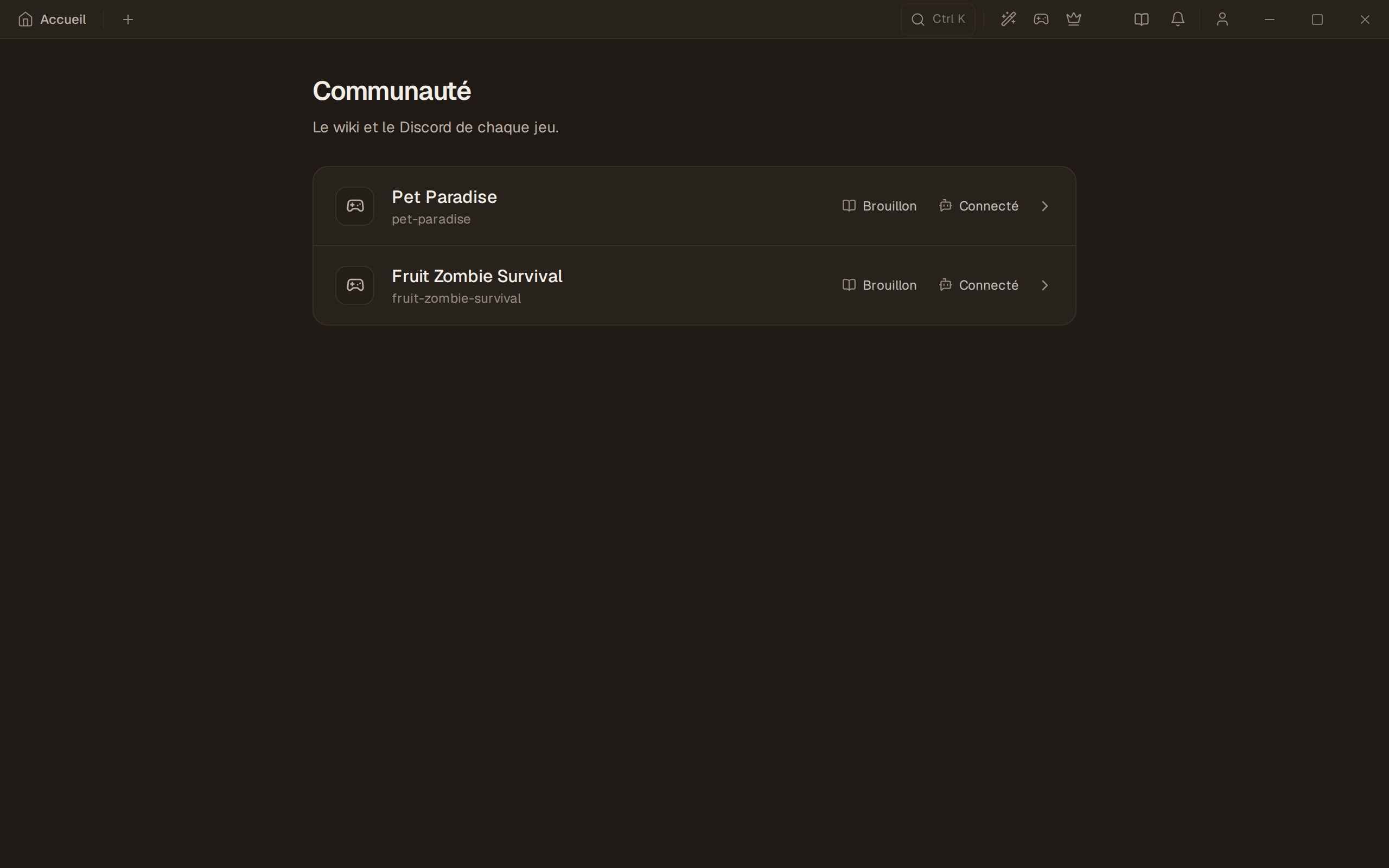
The Community page of the project screen gives the overview: one row per project on this machine, one word for the wiki and one word for the Discord. Clicking the row opens the project directly on this screen.
The path of a wiki, from name to public website
Section titled “The path of a wiki, from name to public website”- You choose the addressA name close to your game’s name on Roblox. This step is yours, never the agent’s.
- The agent writes the draftIt reads the available sources of your game and writes the articles. Only you can see the draft.
- You review and correctThe preview shows the website as players will see it. You ask for corrections by talking to the agent.
- The content is checkedTexts and images are examined. The result applies to this specific version of the draft.
- The wiki is onlineThe website becomes visible to everyone at your address, and joins the public directory of wikis. A switch takes it down and brings it back whenever you want.
Three things to remember before going into detail:
- Editing the draft never changes the public website. Only a publication that you request puts the new version online.
- Each publication starts from a check. A check applies to one specific version of the draft: as soon as the agent changes anything in it, it has to be redone.
- If something breaks along the way, the old version stays online. A failed publication does not leave your players facing an empty page.
When Community ends
Section titled “When Community ends”The wiki lives with Community. When Community ends for the game, the site goes offline by itself; if Community is not resumed, the wiki and its address are deleted 90 days later, after an email sent 15 days before, and the address becomes free for everyone. If you resume Community in the meantime, the site comes back online by itself. See When Community ends.
Going further
Section titled “Going further”- Your game’s Discord — the other half of Community.
- Services for your game — what is open, and what is not.