
Create your account and connect your computer
VibeStarter has no sign-up screen, no password, and no license key to enter. Your account is created by the purchase, with the email address you gave. The app then signs you in through a single-use link sent to that address.
- PurchaseOn the website. The email address you enter becomes your login.
- Email entered in the appSign-in step of the wizard, Terms of Service and Privacy Policy box checked.
- Link received by emailValid for 10 minutes, usable only once.
- Computer linkedThe app signs in on its own. 2 devices at the same time per account.
Before you start
Section titled “Before you start”- VibeStarter is installed and open on the computer you want to link.
- You can check the inbox of the address used at purchase from this computer.
The steps
Section titled “The steps”-
At the VibeStarter step of the wizard, choose I already have an account.
Create my account opens your browser on the purchase page: it is the purchase that creates the account.
-
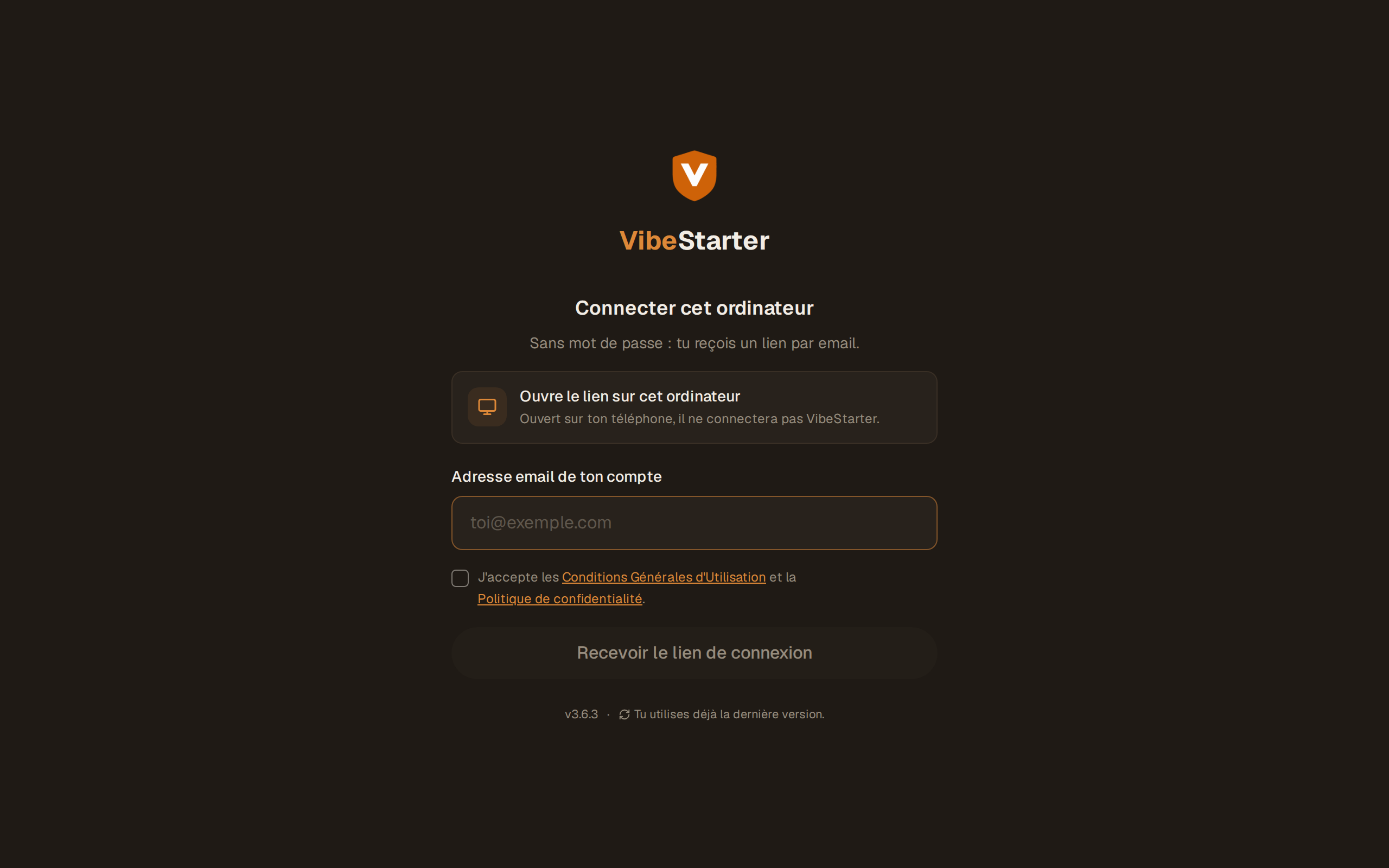
At the Sign in step, enter the email address of your account.
-
Tick the box “I accept the Terms of Service and the Privacy Policy”. Without it, sending the link is refused.
-
Click Send me a login link. The app shows “A login link has been sent to” followed by your address, then “Waiting for you to log in…”.
-
Leave VibeStarter open. Open the email on this same computer and click the link within 10 minutes.
-
The app signs you in on its own and moves to the next step of the wizard.
If you entered the wrong address, Back to email entry takes you back to the form.
No email? Resend the link requests a new one to the same address, at most once a minute. It cancels the previous one: always open the last message you received.
After ten minutes, the app shows “The login link has expired”. The Send a new link button starts again from the same address.
How it works
Section titled “How it works”The login link can be used only once and expires after ten minutes. It links the device on which it is opened: clicking it from your phone does not sign in your computer.
Once you are signed in, the app stores its session token in your system’s credential store — the Keychain on macOS, Credential Manager on Windows. So you do not need to sign in again at each launch. See Your API keys and credential store.
Internet at startup
Section titled “Internet at startup”Each time it starts, VibeStarter checks your access with its servers. An Internet connection is needed, even if your account is already registered on this computer. You do not need to request a new link at each opening: the check uses your saved session.
If the network or the sign-in service is unavailable, the app waits for a successful check before giving you access to the workspace. Restore the connection, then restart VibeStarter.
A loss of connection after this check keeps local features available for at most 24 hours since the last successful check. After that, restore Internet to have your access checked again. Features that depend on Internet wait for the network to come back. If you close the app, its next launch requires a new check.
Two devices per account
Section titled “Two devices per account”An account can be linked to 2 VibeStarter installations at the same time. Beyond that, sign-in is refused with this message:
This account is already linked to 2 VibeStarter devices. Remove a device from your account before signing in here.
Then remove a device from the account area on the website:
- Sign in at vibestarter.pro/account and open the Settings tab.
- In the Connected devices section, find the computer to remove. The one you are using is marked “this device”.
- Click Remove, then Confirm deletion. The device is disconnected from VibeStarter; it will need to sign in by email to come back.
- Start sign-in again on the new computer.
A second limit also applies: four different devices in 30 days, including the ones already in place. Once it is reached, removing a device no longer frees a slot for a new computer until these 30 days are over, and the app shows: “This account has linked several new VibeStarter devices in the last 30 days. Contact support to add another one.” A computer that is already linked can always sign in again. Support can reopen a slot: write to support@vibestarter.pro.
The rest of the account area is described in Your account and your data.
Logging out
Section titled “Logging out”Open the Account menu in the top bar → Logout, then confirm with
Log out. Logging out does not delete your projects or your local assets.
Limits
Section titled “Limits”- No password, so no “forgot password”: everything goes through the account’s email address.
- No sign-up from the app.
- 2 devices linked at the same time, and four different devices at most in 30 days.
- The login link expires after 10 minutes and works only once.
Frequently asked questions
Section titled “Frequently asked questions”I don’t receive the email. Check your spam folder. Make sure you are using the address from the purchase, exactly as entered. If nothing arrives, contact support — see Get help.
“The login link has expired or has already been used” The link is more than ten minutes old, or it has already been used. Start sign-in again from VibeStarter to receive a new one.
I clicked the link on my phone, and the app does not sign in. This is expected: the link links the device on which it is opened. Open it on the computer where VibeStarter runs.
“Update VibeStarter to sign in to your account.” or “Update required” Your version is too old for the service. Install the update; if the app does not update on its own, download the latest version from vibestarter.pro/download. See When an update is mandatory.
“Sign in again to secure your session: it dates from an older version of VibeStarter.” After the move to 3.6.0, the session opened with the older version is no longer valid. Sign in once more with an email link, as usual.
“This account has already linked several new VibeStarter devices in the last 30 days.” Four different devices have been linked to this account in 30 days: removing a device no longer frees a slot before the end of this period. A computer that is already linked can always sign in again. To add another one without waiting, contact support — see Get help.
“Your session has expired or has been signed out” A sign-in on another installation revoked this one. Sign in normally again.
“Your computer’s clock is out of sync” The server refuses a signed session whose time is too far from its own. Turn on automatic date and time, then click Retry in the banner — see I can’t sign in.
I made a typo in my email address at the time of purchase. The account is created with the address you entered. Write to support to correct it — see Get help.
“TLS error”, “DNS error”, or a network error when signing in. An antivirus that inspects HTTPS, a proxy, or a VPN are the most common causes. The steps to follow are in I can’t sign in.